Rapid Card Prototyping with Squib
04 Apr 2026In previous posts, we’ve looked at existing cards in card games like Magic the Gathering and Hearthstone. But what if we wanted to look at making our own card game?
It doesn’t have to be a trading card game. It could be a limited card game like Arkham Horror, or a tabletop game that uses cards, like King of Tokyo.
Today, I want to share how I designed and printed cards for a game design I made called Monster Kitchen.
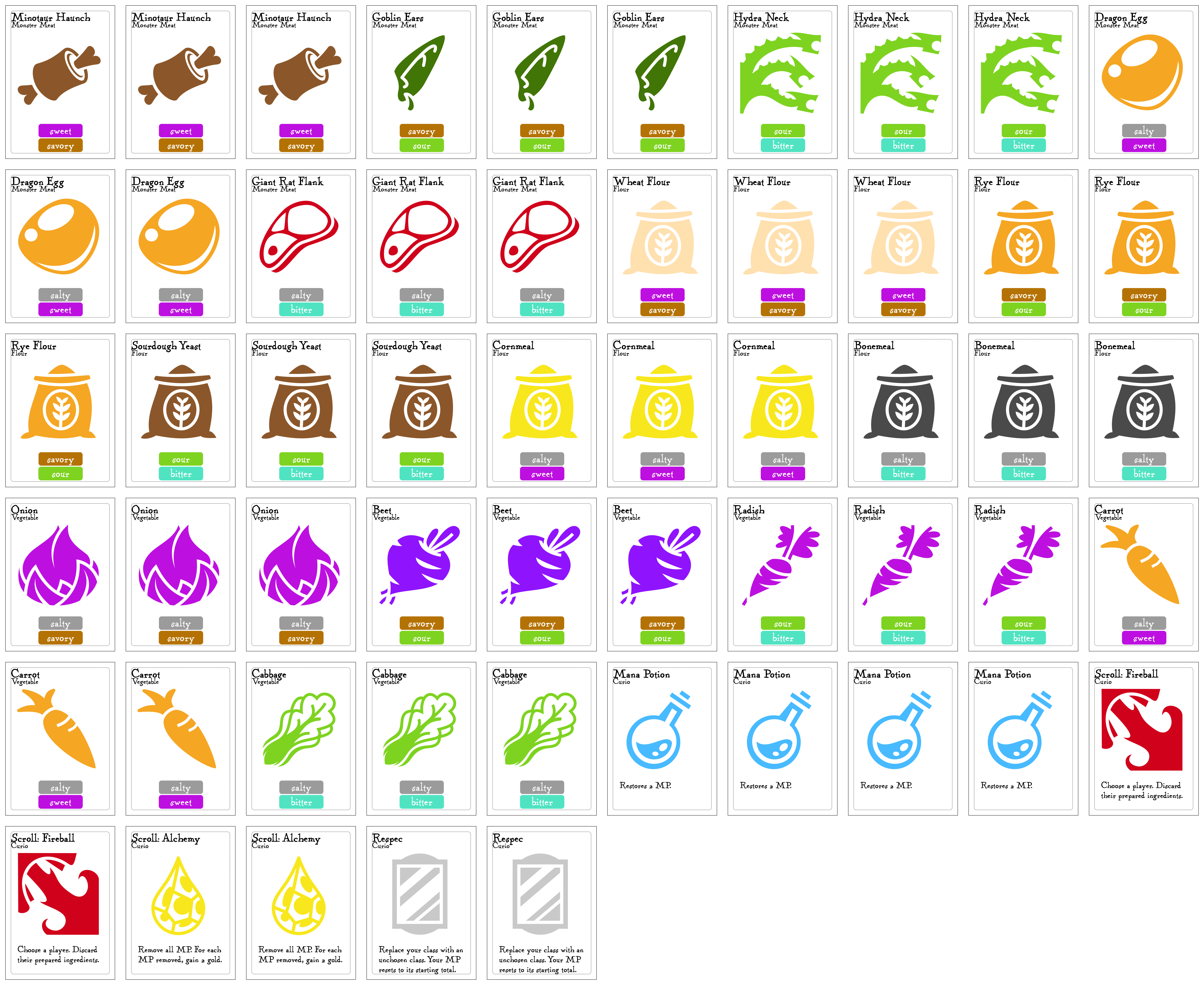
Monster Kitchen is a 3-6 player game where players complete to collect ingredients and recipes to make dishes. And some of the ingredients are monster parts.
The game has gone through a few iterations. Any game design will over the course of its life. In some versions, players competed to feed dishes to diners. In others, the players had characters that they played as and that had special abilities. In versions where no mechanics were added or cut, different cards would be tested and tweaked.
If you want to make a game, it is critical that you are able to rapidly iterate. You need to be able to incorporate feedback and make adjustments to fix things that are broken with your game. And yes, no matter how good of a designer you are, the first version of your game will probably be broken in one way or another.
Technology
There’s no right or wrong answer for technology. I’ve heard of designers using layout tools like Adobe InDesign to lay out cards. As a software engineer by trade, I’ve elected to use a different tool.
For card layout and design, I use an open source software library called Squib. It’s built with the Ruby programming language to enable users to define their cards with data and generate prototype cards with layout and code.
Using Squib does mean writing code, at least a little bit. However, you don’t need to know much about programming to use Squib.
There are three main concepts to understand when using Squib – the cards (data), the layout (design configuration), and the deck (code).
Cards
In Squib, cards are defined using CSV (comma separated values) files. Think of these files as simple spreadsheets. Your first row defines what each column represents, then all the other rows are records with values for those columns.
Below, I have the CSV file for my cards shown above.
title,type,qty,flavor_1,flavor_2,description,illustration
Minotaur Haunch,Monster Meat,3,sweet,savory,,art/counter/meat.svg
Goblin Ears,Monster Meat,3,savory,sour,,art/counter/elf-ear.svg
Hydra Neck,Monster Meat,3,sour,bitter,,art/counter/hydra.svg
Dragon Egg,Monster Meat,3,salty,sweet,,art/counter/dinosaur-egg.svg
Giant Rat Flank,Monster Meat,3,salty,bitter,,art/counter/steak.svg
Wheat Flour,Flour,3,sweet,savory,,art/counter/wheat-flour.svg
Rye Flour,Flour,3,savory,sour,,art/counter/rye-flour.svg
Sourdough Yeast,Flour,3,sour,bitter,,art/counter/sourdough-yeast.svg
Cornmeal,Flour,3,salty,sweet,,art/counter/cornmeal.svg
Bonemeal,Flour,3,salty,bitter,,art/counter/bonemeal.svg
Onion,Vegetable,3,salty,savory,,art/counter/bulb.svg
Beet,Vegetable,3,savory,sour,,art/counter/beet.svg
Radish,Vegetable,3,sour,bitter,,art/counter/raddish.svg
Carrot,Vegetable,3,salty,sweet,,art/carrot-color.svg
Cabbage,Vegetable,3,salty,bitter,,art/counter/bok-choy.svg
Mana Potion,Curio,4,placeholder,placeholder,Restores 2 MP.,art/five_flavors/round-potion.svg
Scroll: Fireball,Curio,2,placeholder,placeholder,Choose a player. Discard their prepared ingredients.,art/five_flavors/fire-breath.svg
Scroll: Alchemy,Curio,2,placeholder,placeholder,Remove all MP. For each MP removed> gain 2 gold.,art/five_flavors/crystalize.svg
Respec,Curio,2,placeholder,placeholder,Replace your class with an unchosen class. Your MP resets to its starting total.,art/five_flavors/mirror-mirror.svg
The first row has the columns that define what the data is. The title is the name and header of the card, and the type is the subheader that tells us what category of ingredient this is. The qty column tells Squib how many times to render the card.
I also want to highlight illustration, which has a path to an SVG file. Here, I’ve added a file to my project, then pointed to the path of the file in the SVG. This lets Squib be able to reference that image and render it in the finished card.
Layout
Layouts are groups of design configurations that are able to be applied to elements.
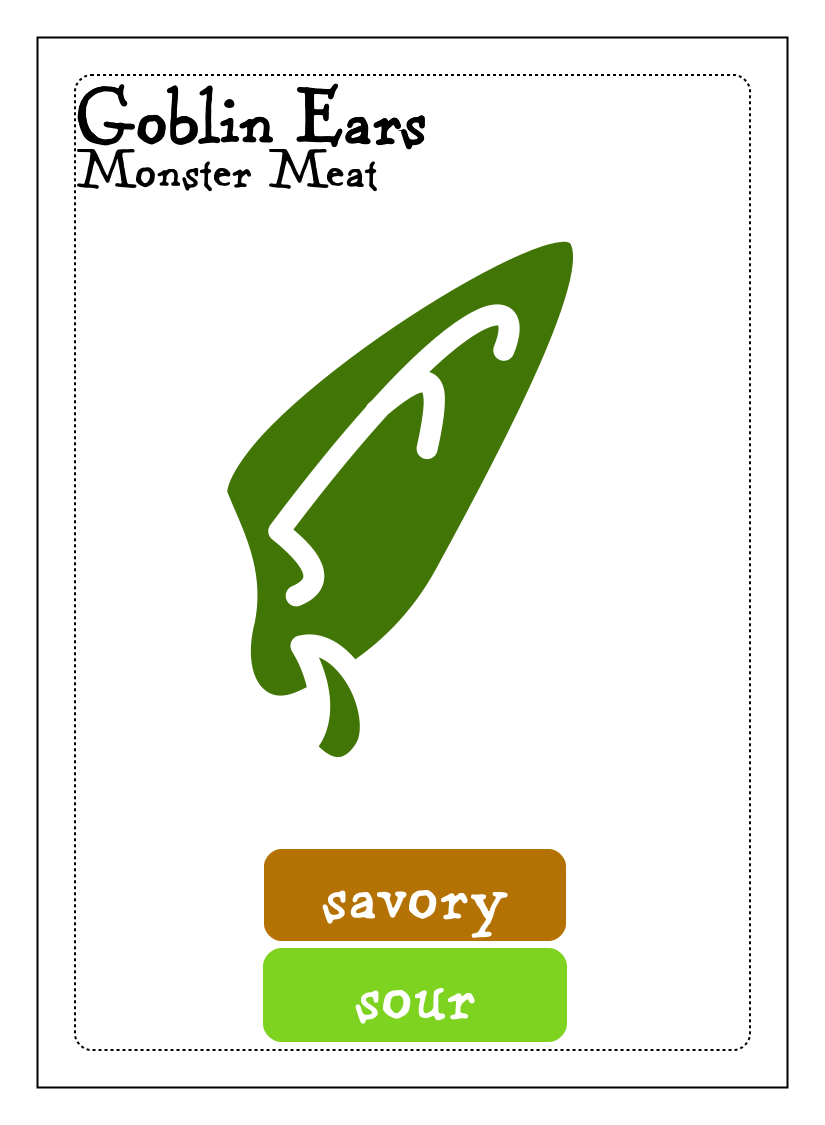
For example, the image on the card is an SVG file. We want to give it a position and a size. We can define the position using an X and Y coordinates and width and height using a layout rule called illustration.
illustration:
  x: 100
  y: 200
  width: 600
  height: 600
For each element on the card, we want to give it all its styling rules with one grouping. Our illustration has a position (x, y) and a size (width/height).
Our text element have a position and size as well. However, this position and sizing is for determining the size of the text box, not the actual text the appears on the page. For that, we want to make sure that we align our text accordingly. The align styling here shifts the text to align with the left, center, or right of the textbox, and valign (vertical align – not used here but good to be aware of) can be used to align the text with the top, middle, or bottom of the textbox.
illustration:
  x: 100
  y: 200
  width: 600
  height: 600

title:
  x: 75
  y: 75
  width: 600
  height: 50
  align: left
  font_size: 16
  stroke_width: 1.5
  font: "Kentucky Fireplace"

type:
  x: 75
  y: 140
  width: 600
  height: 50
  align: left
  font_size: 11
  font: "Kentucky Fireplace"

preparation_icon:
  x: 500
  y: 920
  width: 130
  height: 130

time_text:
  x: 650
  y: 810
  width: 200
  height: 200
  font_size: 48
  stroke_width: 1.5
  font: "Trattatello"

flavor_1:
  x: 265
  y: 850
  width: 300
  height: 90
  align: center
  font_size: 16
  font: "Kentucky Fireplace"

flavor_1_box:
  extends: flavor_1
  radius: 16
  stroke_width: 2

flavor_2:
  x: 265
  y: 950
  width: 300
  height: 90
  align: center
  font_size: 16
  font: "Kentucky Fireplace"

flavor_2_box:
  extends: flavor_2
  radius: 16
  stroke_width: 4

description:
  x: 120
  y: 850
  width: 600
  height: 300
  align: left
  font_size: 12
  font: "Kentucky Fireplace"
Decks
Decks are applications of layout rules to card elements to output image files that will be your cards. Here, we load in the cards from the CSV and the stylings from the layout, and tell Squib how to combine them into cards.
Below, we have the code to tell Squib how to make the cards. I’ve annotated the code with comments that start with the hash symbol # to help explain the code.
require 'squib'

# Here, we load in the card data
data = Squib.csv file: 'cards/five_flavors/ingredients.csv'
cards = data['title'].size

# Now, we grab the layout files to get the style rules.
layouts = ['economy.yml', 'layouts/five_flavors/ingredients.yml']

# We create a new deck, loading in the cards and the layouts
Squib::Deck.new cards: cards, layout: layouts do
  # We start off by making a background and some cut marks
  background color: 'white'
  rect layout: 'cut'
  rect layout: 'safe'

  # Setting the title onto the card
  text str: data['title'], layout: 'title'
  text str: data['type'], layout: 'type'

  # Placing the image onto the card
  svg file: data['illustration'], layout: 'illustration'

  # This lays out the flavors onto the card.
  # Note that I've done special configuration to map flavors to color
  rect layout: 'flavor_1_box', stroke_color: data['flavor_1'], fill_color: data['flavor_1']
  text str: data['flavor_1'], layout: 'flavor_1', color: "white"
  rect layout: 'flavor_2_box', stroke_color: data['flavor_2'], fill_color: data['flavor_2']
  text str: data['flavor_2'], layout: 'flavor_2', color: "white"

  # Placing the description on the card
  text str: data['description'], layout: 'description'

  # We save the cards to individual files...
  save_png prefix: 'ingredients_', dir: '_output/cards'
  # ...as well as to sheets of cards
  save_sheet columns: 10, rows: 6, prefix: 'ingredients_', dir: '_output/sheets'
end
Output
After you put together your cards, layouts, and decks, you can now make your cards.
I like to make individual card files to see how each card looks. I also like to make sheets of cards, either for printing and cutting, or for importing into Tabletop Simulator, a digital way to play board games.
Here is the code where we tell Squib to save our cards as PNG files, as well as in sheets. These sheets are for Tabletop Simulator and not meant to be printed out physically, hence why we have 60 cards in a sheet.
  # We save the cards to individual files...
  save_png prefix: 'ingredients_', dir: '_output/cards'
  # ...as well as to sheets of cards
  save_sheet columns: 10, rows: 6, prefix: 'ingredients_', dir: '_output/sheets'
I have the sheet command here from another project where I print the cards out on paper and cut them out. The cards are approximately 2.5inches x 3.5inches, and I find I can reliably fit eight cards per page (hence two columns and four rows).
save_sheet columns: 2, rows: 4, rotate: true, prefix: "#{filename}_", dir: "_output/#{version}/sheets"
With that, we have a data driven way of designing and printing out cards. I can easily add a new monster ingredient.
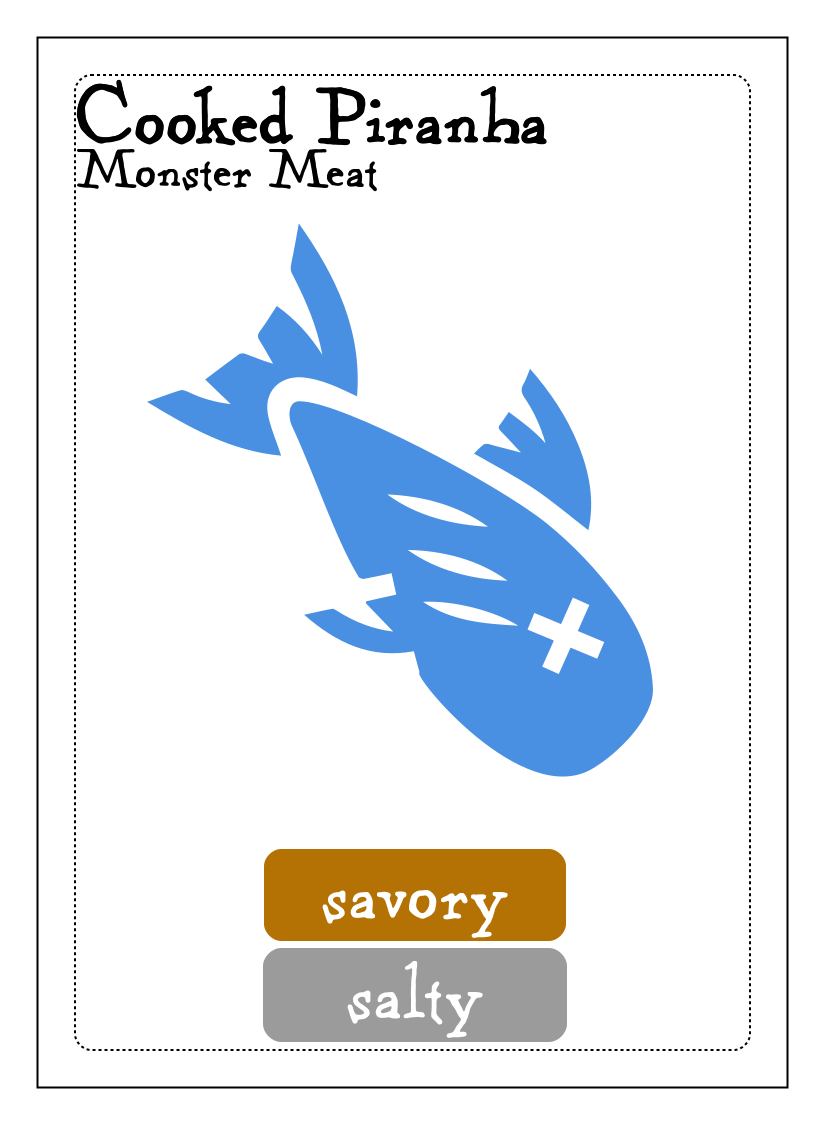
As a fun exercise, let’s give it a try! I’ll add a piranha ingredient.
First, I’ll get a new icon for the fish. For prototyping icons (not used commercially), I like to use https://game-icons.net
Here’s a fun piranha icon from https://game-icons.net/1x1/darkzaitzev/fried-fish.html.

Now that I have my art, I’ll add a row to my CSV here for the game data.
title,type,qty,flavor_1,flavor_2,description,illustration
Cooked Piranha,Monster Meat,3,savory,salty,,art/counter/fried-fish.svg
And from here? Well, I already have my layout and deck files. All I have to do is run the command to generate the cards with rake deck in the command line, and now we have a new card to play with!
If you’re interested and want to try out using Squib to make cards for yourself, I highly recommend reading the official documentation. They do a great job of getting you set up and going with your own cards.
If you have any questions about how I use Squib in my projects, feel free to reach out at chasestevenspersonal+bricks@gmail.com. Happy prototyping!